Nmap for beginners can feel overwhelming at first — hundreds of flags, scan types, and output formats. But here’s the truth: you only need about 10 commands to start scanning networks like a professional. Whether you’re preparing for the CEH v13 exam, learning CCNA networking, or building your first cybersecurity lab, Nmap is the one tool every IT student must know.

What Is Nmap? Why Nmap for Beginners Is Essential
Nmap stands for Network Mapper. As the most popular free, open-source scanning tool, Nmap for beginners opens the door to understanding how networks actually work. Think of it as a flashlight for your network — it shows you every device, open port, and running service that most people never see.
Here’s why Nmap matters for your career. First, every penetration testing engagement starts with reconnaissance. Nmap handles that first step better than any other tool. At the same time, network administrators use it daily to audit firewalls and track down rogue devices.
The tool runs on Linux, macOS, and Windows. Because of this, you can start practicing on any computer you already own. Keep in mind that Nmap appears on nearly every cybersecurity certification exam, from CEH v13 to CompTIA Security+ and OSCP.
Setting Up Nmap for Beginners: Your First Scan Environment
Before you run any command, you need a safe environment. To be clear, scanning networks you don’t own is illegal in most countries. Always practice on your own devices or a dedicated lab.
On Linux (Ubuntu or Kali), open your terminal and type sudo apt install nmap. Similarly, Windows users can download the installer from nmap.org. In the same way, macOS users can install it with brew install nmap using Homebrew.
For a practice lab, you have several free options. VirtualBox lets you create virtual machines that talk to each other on a private network. Similarly, platforms like TryHackMe and Hack The Box offer safe, legal targets specifically built for beginners. To give you an idea, you can set up a vulnerable VM like Metasploitable 2 in under 15 minutes.
Command 1: Ping Scan — Discover Devices on Your Network
The ping scan is your starting point in the Nmap for beginners journey. It tells you which devices are alive on a network without scanning any ports. As a result, this makes it fast and quiet.
nmap -sn 192.168.1.0/24
The -sn flag disables port scanning. Instead, Nmap sends ICMP echo requests and TCP probes to check which hosts respond. In practice, this command scans all 254 addresses in your local subnet and returns a list of live devices within seconds.
What this means is you get a quick inventory of every device connected to your network — routers, laptops, phones, smart TVs, and anything else with an IP address.
Command 2: Basic Port Scan — Find Open Doors
Once you know which devices exist, the next step is checking their open ports. In other words, ports are like doors on a building — each one leads to a different service.
nmap 192.168.1.10
Without any flags, Nmap scans the top 1,000 most common ports on the target. For example, it checks for services like HTTP (port 80), SSH (port 22), FTP (port 21), and DNS (port 53). As a result, if port 80 shows as “open,” it means a web server is running on that machine.
Understanding TCP vs UDP differences helps you interpret these results correctly. Nmap defaults to TCP scans because most services use this protocol.
Command 3: SYN Stealth Scan — The Professional’s Choice
The SYN scan is the most popular technique among security professionals. In practice, it’s faster than a full TCP connect scan and harder to detect because it never completes the three-way handshake.
sudo nmap -sS 192.168.1.10
This command requires root privileges (that’s why you need sudo). Specifically, Nmap sends a SYN packet to each port. If the target replies with SYN/ACK, the port is open. Rather than completing the connection, Nmap sends a RST packet to close it immediately.
Because of this half-open approach, many older intrusion detection systems miss it entirely. That said, modern firewalls and IDS tools can still catch SYN scans. Think of it this way — it’s stealthy, but not invisible.
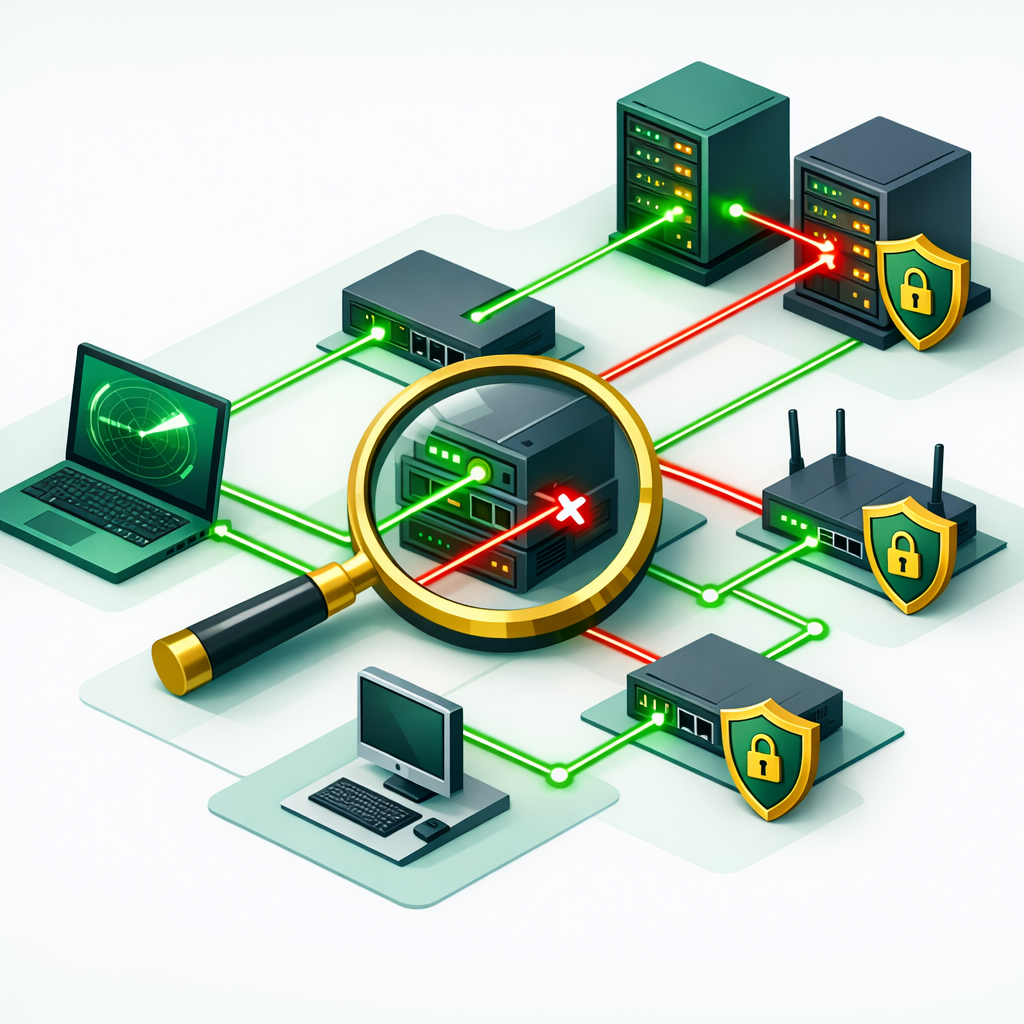
Command 4: Service Version Detection — Know What’s Running
Finding an open port is only half the story. More importantly, you need to know exactly which software version sits behind it. Outdated versions often have known vulnerabilities that attackers exploit.
nmap -sV 192.168.1.10
The -sV flag tells Nmap to probe open ports and determine the service name and version number. For example, instead of just showing “port 22 open,” it might display “OpenSSH 8.9p1 Ubuntu.” This detail is critical for vulnerability assessments.
Additionally, you can control how aggressively Nmap probes by adding --version-intensity followed by a number from 0 to 9. Beginners should stick with the default intensity level.
Command 5: OS Detection — Identify the Target System
Similarly, knowing the operating system helps you narrow down potential vulnerabilities and choose the right tools for further testing.
sudo nmap -O 192.168.1.10
Nmap analyzes how the target responds to specific packet sequences. In fact, each operating system handles network packets slightly differently, creating a unique fingerprint. As a result, Nmap can often tell you whether a device runs Windows 11, Ubuntu 22.04, or even a specific router firmware.
However, OS detection isn’t always 100% accurate. Firewalls and custom configurations can mask the real operating system. To put it simply, treat OS detection results as strong hints rather than guaranteed facts.
Command 6: Aggressive Scan — Everything at Once
When you want maximum information in a single command, the aggressive scan combines OS detection, version detection, script scanning, and traceroute together. Therefore, it’s the all-in-one option for lab environments.
nmap -A 192.168.1.10
The -A flag is essentially a shortcut that enables -O, -sV, -sC, and --traceroute simultaneously. In short, it gives you the most complete picture of a target in one shot.
On the other hand, aggressive scans are noisy and slow. They generate significant network traffic that any decent firewall will detect. Use this command only in your lab environment or during authorized testing. In real penetration tests, professionals prefer running individual scans to stay under the radar.
Command 7: Scanning Specific Ports — Target What Matters
You don’t always need to scan thousands of ports. Instead, sometimes you only want to check whether a specific service is running.
nmap -p 22,80,443,3306 192.168.1.10
The -p flag lets you specify exact ports or ranges. For instance, -p 1-1000 scans the first thousand ports, while -p- scans all 65,535 ports. As a result, targeting specific ports makes your scan dramatically faster.
This is where understanding subnetting basics becomes valuable. Knowing your network layout helps you decide which ports to check on which devices.
Command 8: Saving Scan Results — Never Lose Your Data
However, running a scan without saving the output is a common beginner mistake. That’s why professional testers always export their results for documentation and analysis.
nmap -oN scan_results.txt 192.168.1.0/24
nmap -oX scan_results.xml 192.168.1.0/24
The -oN flag saves results in normal text format that humans can read easily. Additionally, the -oX flag exports to XML, which other security tools can import. Beyond that, -oG creates grepable output that works well with command-line filtering.
Here’s what I tell beginners: always use -oA filename to save in all three formats at once. It takes the same amount of time but gives you maximum flexibility later.
Command 9: NSE Scripts — Automate Vulnerability Checks
Consequently, the Nmap Scripting Engine (NSE) turns Nmap from a simple scanner into a powerful vulnerability assessment tool. It ships with over 600 scripts that check for specific security issues.
nmap -sC 192.168.1.10
nmap --script vuln 192.168.1.10
The -sC flag runs the default set of safe scripts. These gather extra information like SSL certificate details, HTTP headers, and DNS records. More importantly, the --script vuln option runs vulnerability detection scripts that check for known security flaws.
NSE scripts fall into categories like “auth,” “brute,” “discovery,” and “vuln.” Over time, you’ll learn to combine specific scripts for targeted assessments. For now, -sC gives you plenty to work with.
Command 10: Timing Templates — Control Your Scan Speed
Scan speed matters more than most people realize when learning Nmap for beginners. Too fast and you’ll crash devices or trigger alarms. On the other hand, too slow and your scan takes hours.
nmap -T4 192.168.1.0/24
nmap -T2 10.0.0.1
Nmap offers six timing templates, from -T0 (Paranoid) to -T5 (Insane). By default, it uses -T3 (Normal). For lab practice, -T4 (Aggressive) speeds things up significantly without causing problems.
In contrast, use -T2 (Polite) or lower when scanning production networks or during authorized tests where stability matters. Stay away from -T5 as a beginner — it sends packets so fast that results become unreliable and devices may crash.
Common Nmap for Beginners Mistakes You Must Avoid
Running Nmap against networks you don’t own is illegal. Always get written authorization before scanning any target outside your personal lab.
SYN scans require root access. Without sudo, Nmap falls back to slower TCP connect scans. You won’t get the results you expect.
Insane timing overwhelms devices and produces inaccurate results. Stick with T3 or T4 for reliable scanning in any environment.
Every scan should produce a saved report. Use -oA to export in all formats simultaneously. You’ll need these records for analysis and documentation.
Full port scans take a long time. Start with the default top 1,000 ports. Only scan all ports when you have a specific reason to do so.
A “filtered” status means a firewall is blocking your probe. Beginners often ignore this, but filtered ports reveal important information about the target’s defenses.
Your 7-Day Nmap for Beginners Practice Plan
Reading about commands isn’t enough — you need hands-on practice. Therefore, here’s a simple Nmap for beginners plan that builds your skills day by day.
Day 1–2: Install Nmap and set up a VirtualBox lab with two VMs. Then, run ping scans to discover devices. After that, practice basic port scans on your lab targets.
Day 3–4: Run SYN scans, version detection, and OS detection separately. Next, compare the output from each scan type. Finally, save every result using -oA.
Day 5–6: Now, combine commands. Try nmap -sS -sV -O -p 1-1000 -oA full_scan target_ip. Additionally, explore NSE scripts with -sC and --script vuln.
Day 7: Create a free account on TryHackMe and complete their Nmap room. In short, this gives you a safe, guided environment to test everything you’ve learned.
Therefore, building free study resources into your daily practice accelerates your progress. After all, the best cybersecurity professionals practice scanning techniques regularly, not just before exams.
How Nmap Skills Boost Your IT Career in 2026
Nmap isn’t just an exam topic — it’s a daily-use tool for multiple IT roles. For example, network administrators run it to audit firewall rules. Similarly, security analysts use it during incident response. Additionally, penetration testers rely on it for every engagement.
According to job listings on LinkedIn and Indeed, Nmap for beginners proficiency appears in requirements for roles paying between $70,000 and $130,000 annually. In fact, certifications like CEH v13, CompTIA PenTest+, and OSCP all test Nmap commands directly.
Beyond that, understanding network scanning helps you grasp broader concepts like zero trust security. You can’t build a zero trust architecture without first knowing what’s running on your network.
Ready to Build Real Cybersecurity Skills?
Bhanu’s online training programs cover Nmap, network security, and ethical hacking with hands-on labs. Learn the exact tools and techniques that employers demand in 2026.
Official Resources
- Nmap Official Documentation — nmap.org
- TryHackMe — Free Cybersecurity Practice Labs
- EC-Council CEH v13 Certification Overview