3 AM. Your API returns a 500 error. You’re staring at code, unsure if the bug is in your frontend or backend. This is where Postman saves you hours. Postman for beginners is the fastest way to test, debug, and understand APIs — and every developer in 2026 needs it in their toolkit.
What Is Postman? A Beginner-Friendly Explanation
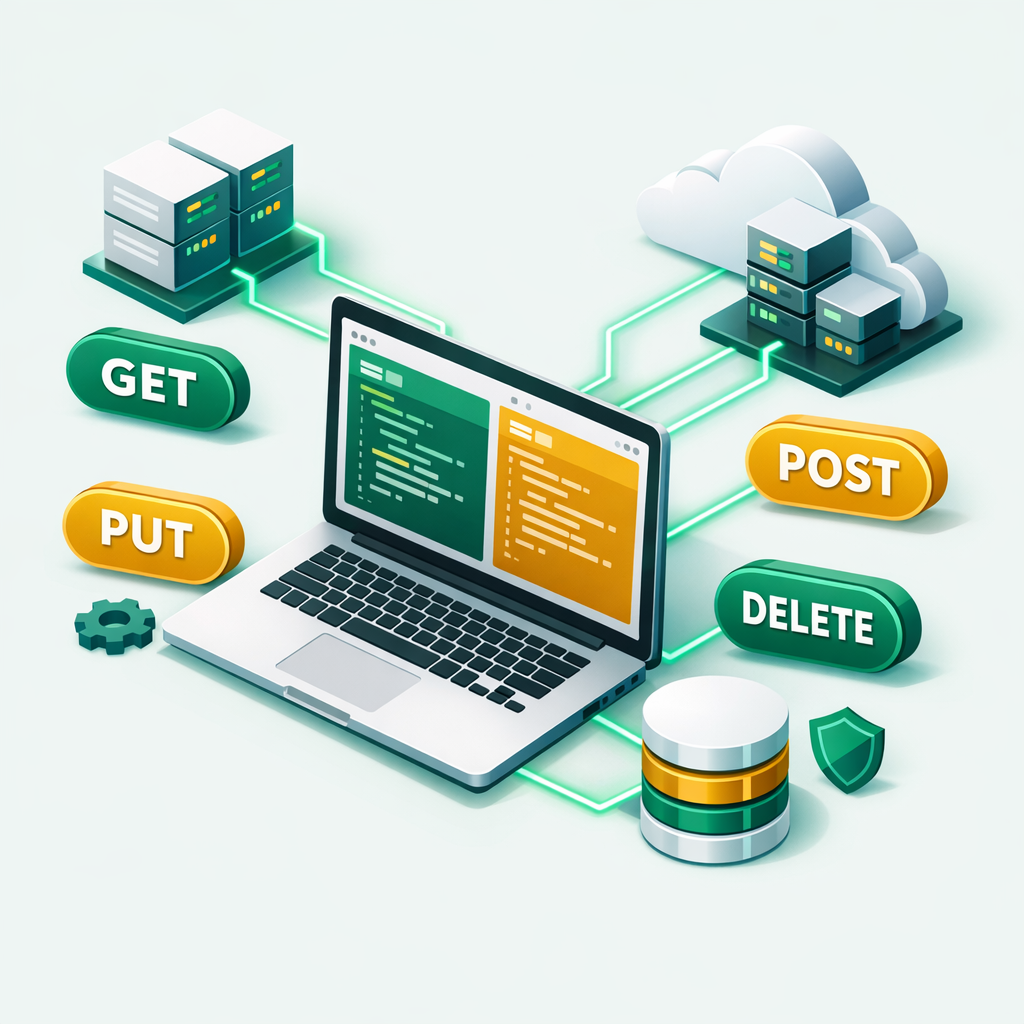
Postman is a free tool that lets you send requests to APIs and see the responses instantly. Think of it as a browser for APIs. Instead of visiting websites, you’re visiting backend endpoints — sending data, getting data, and checking if everything works correctly.
APIs (Application Programming Interfaces) power nearly every modern app. When you log in to a website, check the weather on your phone, or make a payment online, an API handles the communication between systems. As a result, Postman for beginners helps you test these connections without writing any frontend code.
Because of this simplicity, Postman has become the most popular API testing tool in the world. It works on Windows, Mac, and Linux. Additionally, you can also use it directly in your browser through the Postman web app.
Why Every IT Student Should Learn Postman in 2026
Here’s why APIs are everywhere. Whether you’re building web apps, working with cloud services like AWS Lambda, or automating DevOps workflows, you’ll interact with APIs daily. Postman makes this interaction visual and intuitive.
Additionally, Postman shows up in almost every developer job description in 2026. For instance, recruiters expect candidates to know how to test APIs, document them, and automate API checks. Learning Postman for beginners early gives you a concrete skill that translates directly to the workplace.
More importantly, Postman for beginners isn’t limited to web developers. For cybersecurity students, it’s equally valuable. You can use it to test authentication endpoints, check for broken access controls, and inspect API responses for sensitive data exposure. In other words, Postman isn’t just a developer tool — it’s a security testing tool too.
How to Install and Set Up Postman
To be clear, getting started with Postman takes less than five minutes. Visit postman.com/downloads and download the desktop app for your operating system. The installer runs quickly, and you’ll see the Postman interface within a minute.
Additionally, you can create a free Postman account to save your work, sync collections across devices, and collaborate with teammates. However, you don’t need an account to start testing APIs right away. As a result, the free tier includes unlimited requests, collections, and environments — more than enough for learning.
As an alternative, you can use Postman directly in your browser at web.postman.co. The web version has most of the same features as the desktop app. For beginners, either option works perfectly. This is what makes Postman for beginners so easy to start with.
How to Send Your First API Request in Postman
Here’s a quick hands-on exercise to test an API in under two minutes.
Step 1: Open Postman and click the “+” button to create a new request tab. You’ll see a URL bar at the top — this is where you’ll type the API endpoint.
Step 2: Type this free public API URL: https://jsonplaceholder.typicode.com/posts/1. Make sure the method dropdown (to the left of the URL) says GET.
Step 3: Click the blue “Send” button. Within a second, Postman displays the API response in the lower panel. You’ll see a JSON object with fields like userId, id, title, and body.
That’s it — you’ve just made your first API call! The response panel also shows the status code (200 OK), response time, and response size. These details help you evaluate whether an API is working correctly and performing well.
{
  "userId": 1,
  "id": 1,
  "title": "sunt aut facere repellat...",
  "body": "quia et suscipit suscipit..."
}

Status: 200 OK
Time: 120ms
Size: 292 B
Understanding HTTP Methods in Postman
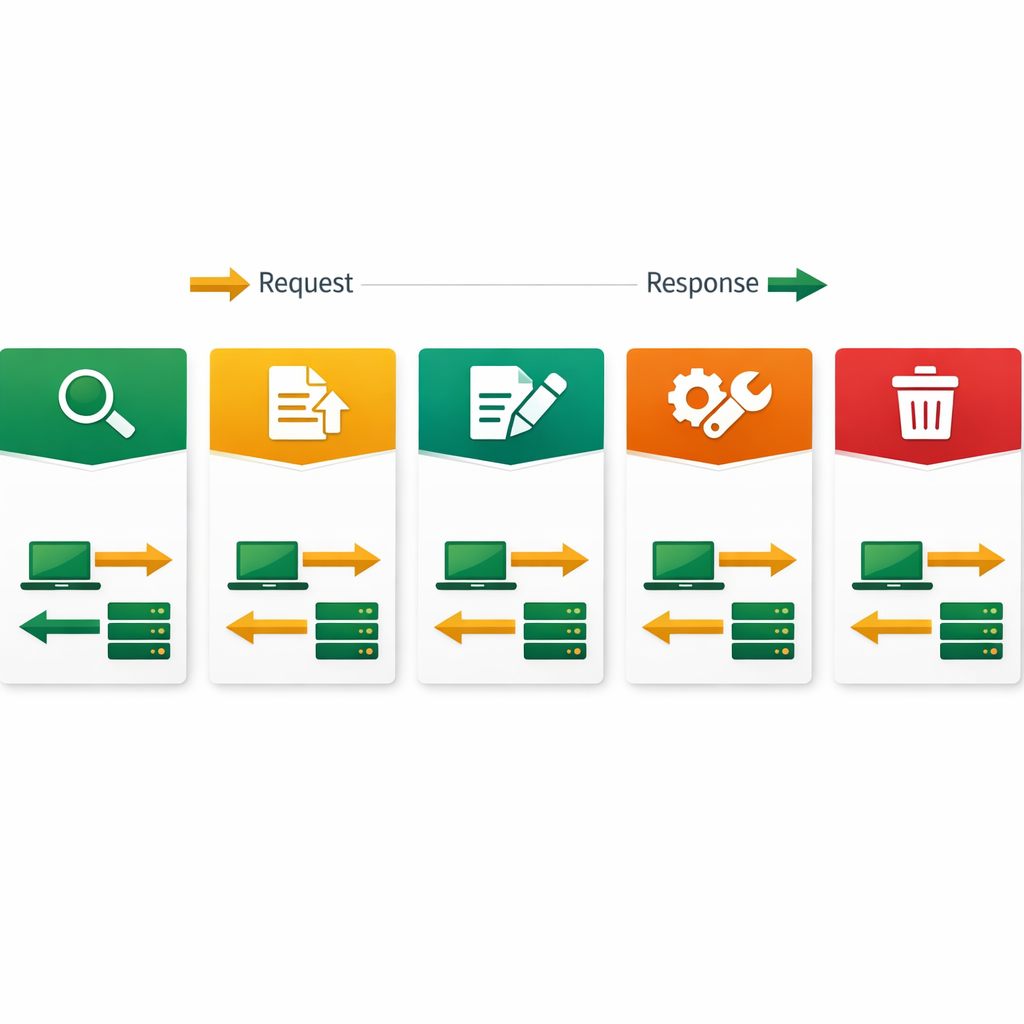
Every API request uses an HTTP method that tells the server what action to perform. Postman makes it easy to switch between these methods using a dropdown menu. Here are the four methods you’ll use most often.
GET retrieves data from the server. It’s like asking “show me this information.” For example, fetching a user profile or loading a list of products. GET requests don’t change any data on the server.
POST sends new data to the server. You use it when creating something — a new user account, a new blog post, or a new order. The data you’re sending goes in the request body.
PUT updates existing data. If you want to change a user’s email address, you’d send a PUT request with the updated information. It replaces the entire resource with your new version.
DELETE as the name implies, removes data from the server. As the name suggests, it deletes a resource permanently. Always use DELETE carefully in production environments.
Postman Collections: Organize Your API Requests
As you test more APIs, your request list grows quickly. This is where Postman for beginners gets even better. Collections let you group related requests into folders. Think of a collection as a project folder that holds all your API calls for one application.
For example, you might create a collection called “My E-Commerce API” with folders for Users, Products, and Orders. Each folder contains the relevant GET, POST, PUT, and DELETE requests. This organization makes it easy to find and rerun specific tests later.
Beyond organization, collections are shareable. Additionally, Postman for beginners makes sharing easy. You can export a collection as a JSON file and send it to a teammate. They import it into their Postman, and instantly they have all your API tests ready to run. In practice, this saves teams hours of duplicate setup work. That means Postman for beginners also teaches you strong team habits from day one.
How to Use Environments and Variables in Postman
Environments are one of Postman’s most powerful features. An environment is a set of key-value pairs (variables) that you can swap between without changing your requests.
For instance, create two environments: “Development” with base_url = http://localhost:3000 and “Production” with base_url = https://api.myapp.com. In your requests, replace the hardcoded URL with {{base_url}}/users. Now switching environments automatically points all requests to the right server.
You can store API keys, tokens, and other configuration values the same way. To be clear, this doesn’t just save time — it prevents mistakes. You’ll never accidentally send a test request to your production server when environments are set up correctly.
Writing Automated Tests in Postman
Postman lets you write simple JavaScript tests that run automatically after each request. These tests verify that the API behaves as expected — checking status codes, response times, and data formats.
Here’s what a basic test looks like. In the “Tests” tab of any request, you can write snippets like checking if the status code equals 200, or if the response contains a specific field. Postman provides pre-built test snippets that you can click to insert — no JavaScript expertise required.
At the same time, you can run entire collections automatically using the Collection Runner. It executes every request in your collection sequentially and reports which tests passed or failed. For DevOps workflows, you can even run Postman tests in your CI/CD pipeline using Newman (Postman’s command-line companion).
5 Postman for Beginners Tips That Save Time Every Day
1. Use the search bar. Press Ctrl+K (or Cmd+K on Mac) to instantly search across all your collections, requests, and history. It’s the fastest way to find anything.
2. Check response headers. The Headers tab in the response panel shows important details like content type, caching rules, and rate limits. Don’t ignore them — they help you understand how the API behaves.
3. Use the console. Postman’s built-in console (View → Show Console) logs every request and response in detail. When something goes wrong, the console is your first debugging tool.
4. Generate code snippets. Click the code icon (“< />”) on any request, and Postman generates the equivalent code in Python, JavaScript, cURL, and dozens of other languages. This helps you convert API tests into actual application code.
5. Explore public APIs. Postman’s API Network has thousands of public API collections you can fork and explore. It’s a fantastic way to practice with real-world APIs from companies like cloud providers, payment gateways, and social platforms.
Build Real Skills with Hands-On Training
Bhanu’s online courses teach you to work with APIs, cloud platforms, and development tools through real projects. Build the practical skills employers look for in 2026.