Wireshark for beginners might sound intimidating — but here’s a stat that changes everything: this free tool supports over 3,000 network protocols, yet you only need about 5 display filters to start solving real problems. Whether you’re studying for CCNA, preparing for CEH v13, or troubleshooting a slow network at work, Wireshark gives you something no other tool can — a direct view of every packet moving through your network.
What Is Wireshark? Why Wireshark for Beginners Matters
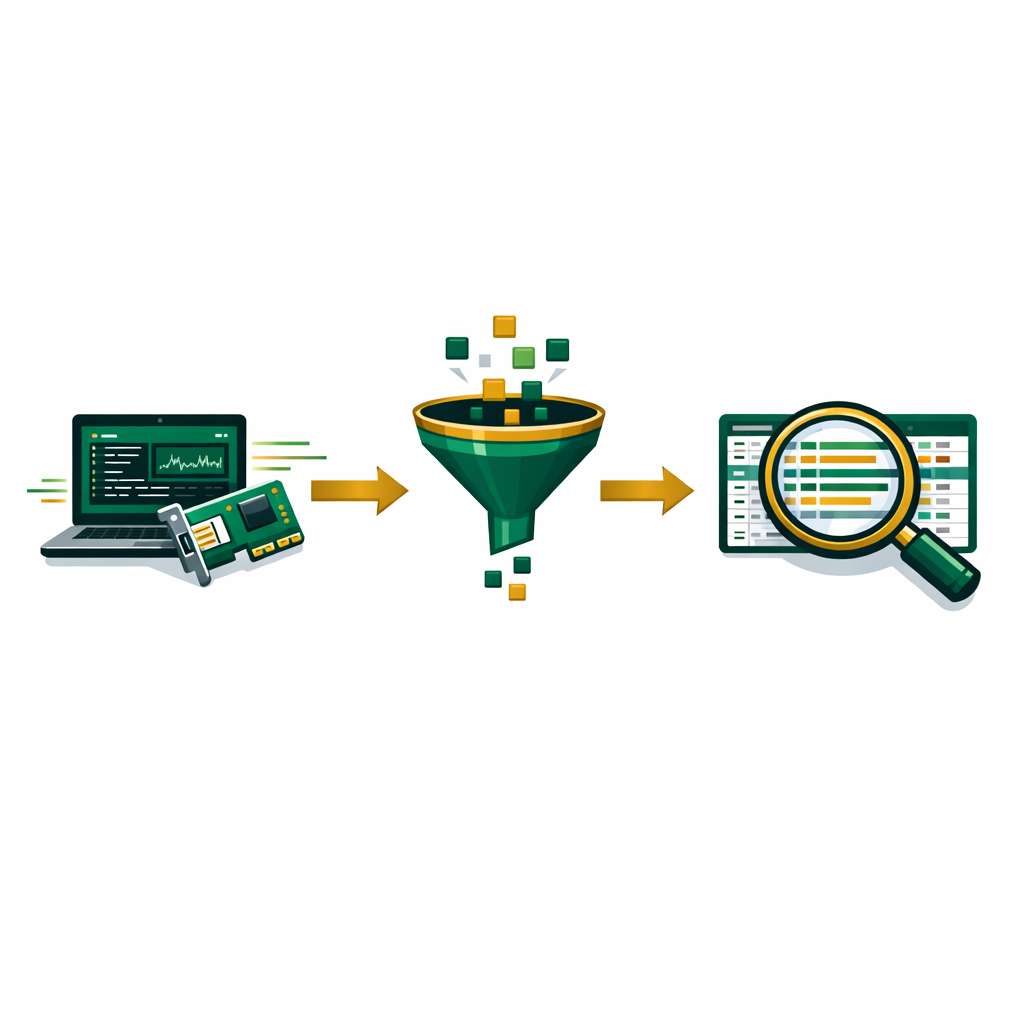
Wireshark is a free, open-source tool that reads network traffic. In simple terms, it grabs data packets as they move across your network and shows them in a way you can read. To put it simply, it works like a security camera for your network — it records every bit of data on the wire.
Here’s why this matters for your career. Basically, every IT role needs some network skills. For example, network admins use Wireshark to find slow links. At the same time, security teams rely on it to spot bad traffic during attacks. Additionally, pen testers use packet data as proof in their reports.
Unlike most paid tools, Wireshark is totally free. Also, it runs on Windows, macOS, and Linux. Because of this, you can start learning on any laptop you own — no special gear needed.
Wireshark for Beginners vs Other Network Tools
You might wonder how Wireshark compares to tools like Nmap or tcpdump. To put it simply, each tool has a different job in your toolkit.
Nmap scans networks to find devices and open ports. In contrast, Wireshark grabs and reads the real traffic flowing between those devices. Think of it this way — Nmap tells you what doors exist, but Wireshark shows you what’s walking through them.
Tcpdump is another packet tool, but it only works in the command line. As a result, reading its output takes more skill. On the other hand, Wireshark adds a visual layout with color codes, filters, and easy breakdowns that help beginners a lot.
For a full network check, pros use all three tools. First, they scan with Nmap. Then, they capture traffic with Wireshark. Finally, they check findings with other tools.
How to Install Wireshark for Beginners: Step by Step
Setting up Wireshark takes less than 5 minutes on any system. Here’s the exact steps for each one.
Windows: First, download the file from wireshark.org. Then, run the setup and accept the defaults. More importantly, install Npcap when asked — Wireshark needs it to grab packets on Windows.
macOS: Similarly, download the .dmg file from the same site. Then, drag Wireshark into your Apps folder. During the first run, macOS may ask you to install a helper — just click “Install” to allow it.
Linux (Ubuntu/Kali): Just open your terminal and type sudo apt install wireshark. When it asks if non-root users can grab packets, pick “Yes.” After that, add your user to the group with sudo usermod -aG wireshark $USER.
Your First Wireshark for Beginners Packet Capture
Once you open Wireshark, you’ll see a list of network links. In short, each one is a way your computer talks to the network. For most beginners, you’ll pick “Ethernet” (wired) or “Wi-Fi” (wireless).
To start, simply double-click your active link. Right away, packets flow across the screen. At first, this looks like a mess. However, here’s what you need to know about the three main panels.
Packet List (top): Here, every row shows one packet. You’ll see the source IP, target IP, type, and a short note. Also, color coding helps you spot different types fast.
Packet Details (middle): When you click a packet, this area breaks it into layers. For example, you’ll see Ethernet, IP, TCP/UDP, and app-layer info. Each layer opens up to show its fields.
Packet Bytes (bottom): This shows raw hex data next to its text form. Beginners rarely need this part, but pros use it for deep checks.
To stop, click the red square button at the top. Keep in mind that closing Wireshark without saving means your data is gone for good. Therefore, always save as .pcap or .pcapng files for later use.
File → Save As → Choose .pcapng format
Name it: first-capture-2026.pcapng
Store it in a dedicated "packet-captures" folder
5 Essential Wireshark Display Filters Every Beginner Needs
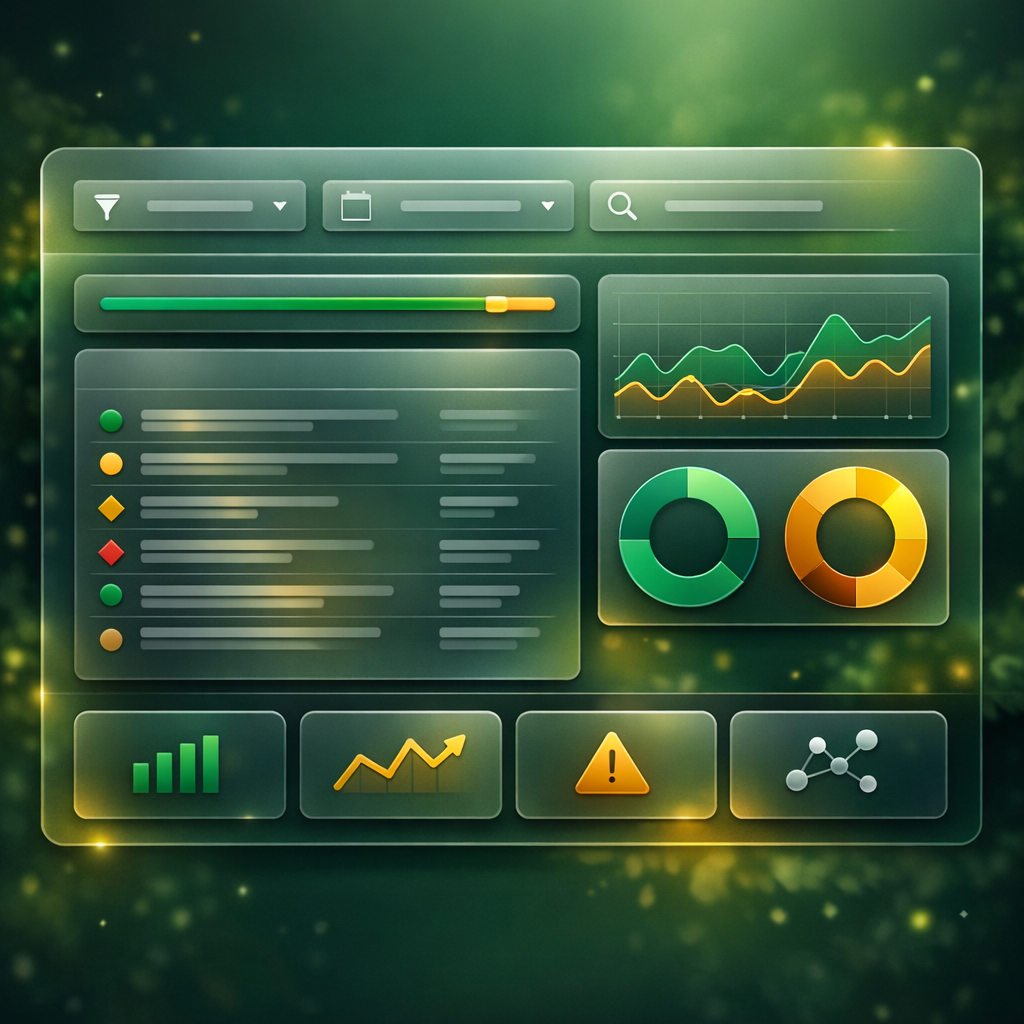
Display filters are what make Wireshark for beginners easy to use. Without them, you’re looking at thousands of packets with no clear path. Here are the 5 filters to learn first.
1. http                         → Show only HTTP web traffic
2. dns                          → Show only DNS lookups
3. ip.addr == 192.168.1.10      → Show all traffic to/from a specific device
4. tcp.port == 443              → Show only HTTPS traffic
5. tcp.analysis.retransmission  → Show retransmitted packets (slow connection clue)
To use a filter, just type it in the bar at the top and hit Enter. If the bar turns green, your filter is right. However, a red bar means you made an error — so check your words.
For example, say your internet feels slow. Just type tcp.analysis.retransmission in the bar. If you see lots of repeat packets, that means your network is jammed. On the other hand, if there are very few, the issue is likely in the app itself.
Also, you can mix filters with logic words. For instance, http && ip.addr == 192.168.1.10 shows only HTTP data from one device. Similarly, dns || http shows both DNS and HTTP at once. As a result, these combos help you find the exact traffic you need.
How to Read Wireshark Packets: A Beginner-Friendly Breakdown
Reading a packet feels odd at first. However, every packet has the same layer setup based on the TCP/IP model. Once you get these layers, reading packets gets easy.
Layer 1 — Ethernet: This shows the MAC addresses of both devices. In practice, it tells you which device sent the data and which one got it on your local network.
Layer 2 — IP (Internet Protocol): Here you’ll find the source and target IP addresses. Additionally, you can see the TTL value, which shows how many hops the packet can make before it dies.
Layer 3 — TCP or UDP: This part shows the source and target ports. For example, port 80 means HTTP, while port 443 means HTTPS. Knowing your subnetting basics also helps you read IP and port data faster.
Layer 4 — Application Data: At the top layer, you might see HTTP calls, DNS lookups, or other app info. However, most web traffic now uses HTTPS, so this layer often shows only encrypted data.
4 Real-World Wireshark Troubleshooting Scenarios for Beginners
Theory helps, but Wireshark for beginners truly clicks when you fix real issues. Here are four cases you’ll see often.
Scenario 1: Website Loading Slowly
First, start a capture, then open the slow site. Next, stop the capture after the page loads. Then, apply the filter http and look for long gaps between calls. If you see waits of a few seconds, the server is slow. In contrast, if packets come fast but repeat often, your network link is the issue.
Scenario 2: DNS Resolution Failures
First, apply the dns filter. Then, look for DNS calls that don’t get a reply — these show up as lonely “Standard query” packets with no matching response. As a result, your device can’t turn site names into IP addresses, so pages fail to load.
Scenario 3: Suspicious Network Activity
To start, filter by ip.addr == [suspicious_IP] and check the traffic. Specifically, look for links to odd ports, big data sends to unknown places, or repeat login tries. Security pros call these signs of a breach.
Scenario 4: Random Connection Drops
For this, use the filter tcp.flags.reset == 1 to find TCP reset packets. Basically, a high count of resets means links are being cut by force. This often points to firewall rules, app crashes, or security policy blocks.
Common Wireshark for Beginners Mistakes to Avoid
If you pick the wrong network link, Wireshark grabs nothing useful. Therefore, always check which link carries your real traffic before you begin.
Closing Wireshark without saving erases all your data for good. Because of this, always export your files as .pcapng before you close the app.
Looking at traffic on networks you don’t own is illegal in most places. Instead, only grab packets on your own gear, home Wi-Fi, or a lab you control.
Most web traffic today uses HTTPS, which hides the data. As a result, beginners get stuck when they can’t read app data. To decrypt it, you’d need the server’s key or a special setup.
Wireshark marks errors in red and odd patterns in dark shades. However, beginners often miss these hints and skip clear signs of trouble in the data.
Long captures make huge files that slow your work. Instead, keep captures short — about 60 seconds is enough to catch the issue you’re looking into.
Your 5-Day Wireshark for Beginners Practice Plan
Hands-on practice makes Wireshark skills stick. Therefore, follow this 5-day plan to build confidence quickly.
Day 1: First, install Wireshark on your PC. Then, open it, pick your active link, and grab traffic for 30 seconds. After that, explore the three panels and get used to the layout. Finally, save your first .pcapng file.
Day 2: Next, try all 5 display filters listed above. Also, open a browser during your capture, then filter for http and dns traffic. You’ll notice how each site visit makes dozens of DNS and HTTP calls behind the scenes.
Day 3: Day 3: Then, capture traffic while browsing three sites. Use ip.addr filters to split traffic by site. Additionally, try mixing filters with && and ||. After that, export your notes as a text file using File → Export Packet Dissections.
Day 4: After that, download a sample file from Wireshark’s sample page. Then, look at the HTTP traffic, find DNS calls, and spot which devices talked. Also, practice reading layers from Ethernet up to the app layer.
Day 5: Finally, make a free account on TryHackMe and do their Wireshark room. This gives you safe, guided practice with real capture tasks. After that, try mixing your Nmap skills with Wireshark for a full workflow.
How Wireshark for Beginners Boosts Your IT Career
Packet reading isn’t just a cert topic — it’s a daily skill for many IT jobs. For instance, network engineers use Wireshark to check firewall rules. Similarly, SOC teams look at captured traffic during attacks. Beyond that, DevOps teams use it to fix app-to-app chat issues.
Big certs test Wireshark skills head-on. For example, the CEH v13 exam covers packet sniffing. At the same time, CompTIA Security+ expects you to read traffic data. Additionally, the CCNA exam tests how well you can spot patterns and fix link issues.
Here’s what makes Wireshark for beginners so great — once you see how packets move, networking stops being just theory. Instead, you can watch real chats between devices. As a result, topics like TCP vs UDP, DNS lookups, and firewall rules finally make full sense.
Ready to Master Network Analysis and Security?
Bhanu’s online training programs cover Wireshark, network security fundamentals, and ethical hacking with hands-on packet capture labs. Learn the exact skills that employers demand in 2026.
Official Resources
- Wireshark Official Download — wireshark.org
- Wireshark Sample Capture Files for Practice
- EC-Council CEH v13 Certification Overview
- CompTIA Security+ Certification